

Why Lightroom is Essential for Photographers
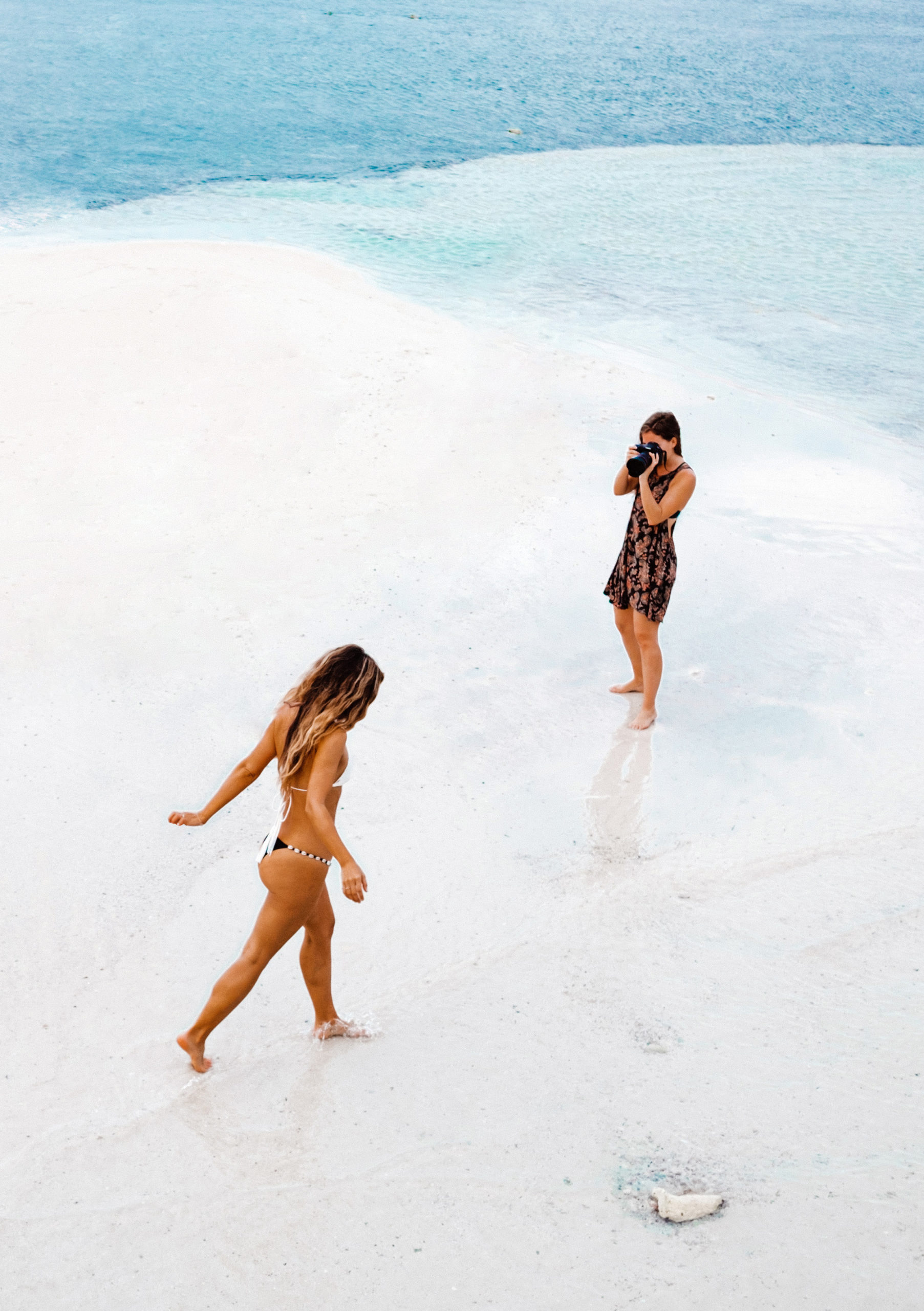
When it comes to photography, capturing the shot is just half the journey. The other half? Post-processing. And that’s where Adobe Lightroom shines. Lightroom is one of the most powerful yet beginner-friendly editing tools out there. It helps you turn a flat, unpolished shot into a masterpiece—without needing years of graphic design training.
Lightroom vs. Photoshop – What’s the Difference?
You might be wondering, “Why not just use Photoshop?” Photoshop is brilliant for heavy editing and retouching, but Lightroom is built for photographers. It’s faster, non-destructive (meaning your original file stays safe), and perfect for batch editing large photo collections. Think of Lightroom as your digital darkroom—designed to enhance, not manipulate.
Getting Started with Lightroom Editing
Importing Photos into Lightroom
Step one: bring your photos into Lightroom. You can import straight from your memory card or hard drive. During import, you can even add keywords to keep your photos organized. A small step that saves huge headaches later.
Understanding the Lightroom Interface
At first glance, Lightroom’s panels may seem intimidating. Don’t worry—it’s simpler than it looks. On the right, you’ll find editing tools; on the left, you’ll see your photo library. The “Develop” module is your main editing space, and that’s where the magic happens.
Basic Lightroom Editing Tools Every Photographer Should Know
The Exposure Slider – Controlling Light
This is your “brightness” control. If your photo is too dark, slide it right. Too bright? Slide it left. The goal is to balance light so details pop without washing anything out.
Contrast – Adding Depth to Your Image
Think of contrast like seasoning in food—it makes everything taste better when used correctly. Adding contrast gives your photo that extra punch, making subjects stand out.
Highlights and Shadows – Balancing Details
Highlights help recover blown-out skies, while shadows bring back details from darker areas. Together, they create a balanced photo that feels alive.
Whites and Blacks – Defining the Image’s Tone
Adjusting whites and blacks sets your photo’s tonal range. Want a crisp, clean look? Push whites slightly up. Need drama? Lower the blacks for moodier tones.
Clarity, Texture, and Dehaze – Fine-Tuning Your Shots
These three are like the secret spices. Clarity enhances midtones for a punchy effect. Texture sharpens small details like skin or fabric. Dehaze? It literally cuts through fog, haze, or washed-out skies.
The Power of Color Adjustments
Vibrance vs. Saturation – What’s the Difference?
Both control color intensity, but vibrance is more subtle. It boosts muted colors without overcooking the already bright ones. Saturation, on the other hand, turns the volume up on all colors.
Using the HSL Panel for Precise Color Control
HSL stands for Hue, Saturation, and Luminance. Want greener grass without affecting the sky? The HSL panel lets you tweak each color individually. It’s like having a paintbrush for your photo.
Cropping and Straightening Your Photos
Aspect Ratios and Composition Fixes
Ever taken a great shot that’s just a little crooked? The crop tool lets you straighten horizons and reframe your composition. You can also use aspect ratios (like 4:5 for Instagram) to prep your image for different platforms.
Sharpening and Noise Reduction
When to Use Sharpening
Sharpening makes edges more defined. Use it sparingly—too much, and your photo looks crunchy. A little sharpening goes a long way, especially for portraits and landscapes.
Reducing Noise for Cleaner Images
Noise shows up as grain, especially in low-light shots. Lightroom’s noise reduction tool smooths things out without losing detail, making your images look polished and professional.
The Magic of Presets
Free vs. Paid Lightroom Presets
Presets are like Instagram filters but way more powerful. Free presets are a great start, but paid ones often come fine-tuned by professionals. Either way, they can save you loads of editing time.
How to Create Your Own Presets
Once you’ve nailed an editing style you love, save it as a preset. That way, you can apply it to future photos with one click. Consistency = professional-looking photo feeds.
Exporting Your Edited Photos
Best Settings for Social Media
For Instagram and Facebook, export in JPEG, sRGB color space, and around 2048px on the long edge. This keeps quality high without bloating file size.
Best Settings for Printing
For prints, go TIFF or high-quality JPEG with 300 DPI. Bigger files, yes—but the results on paper are worth it.
Common Mistakes to Avoid in Lightroom Editing
- Over-editing (yes, too much of a good thing ruins photos).
- Ignoring white balance (your sunset shouldn’t look neon orange).
- Copy-pasting presets without tweaking them.
Final Thoughts on Photography Tip 77
Photography Tip #77 is all about mastering basic Lightroom editing. It’s not about crazy effects or heavy retouching—it’s about enhancing what’s already there. With practice, Lightroom can become second nature, making your photos look sharper, more colorful, and more professional.
FAQs
1. Is Lightroom free to use?
Adobe offers Lightroom as part of a subscription plan, but there’s also a free mobile version with limited features.
2. Do professionals actually use Lightroom?
Absolutely! Many pros use Lightroom as their main editing software for its speed and batch editing power.
3. Can Lightroom replace Photoshop?
Not entirely. Lightroom is great for global adjustments, while Photoshop excels at detailed retouching and composites.
4. How long does it take to learn Lightroom?
With daily practice, you can learn the basics in a few days and master them in a few weeks.
5. Can I recover bad photos using Lightroom?
You can fix exposure, colors, and some details, but Lightroom can’t save completely blurry or out-of-focus shots.
Looking for more easy-to-follow photography tips? Visit CameraTale.com for step-by-step guides and pro insights.
Discover the ultimate library of 100+ Photography Tips to level up your skills today.