
Why Mobile Editing Is a Game-Changer
Mobile editing apps have revolutionized photography. They’re not just a “Plan B” anymore — they’re powerful enough to handle serious projects.
Accessibility and Convenience
Your phone is always with you, right? That means your editing tools are always at your fingertips. No need to wait until you get home to polish your shots.
Faster Workflow for Busy Photographers
Imagine snapping a photo, editing it on your phone in minutes, and sharing it instantly on social media. That’s how mobile editing keeps up with our fast-paced lives.
Best Mobile Apps for Photo Editing
There’s a sea of apps out there, but here are the ones that stand out.
Lightroom Mobile
A favorite among professionals. Lightroom Mobile lets you sync with desktop Lightroom and offers advanced tools like RAW editing, masks, and presets.
Snapseed
Google’s free app that feels almost magical. It offers selective adjustments, healing tools, and a super simple interface.
VSCO
If you love aesthetic presets, VSCO is your go-to. It’s great for creating a consistent style for your feed.
PicsArt
This one leans more creative. Think stickers, overlays, collages — perfect if you like experimenting.
Canva
Not just for presentations! Canva lets you add stylish text, templates, and layouts to your photos, making it a dream for content creators.
Essential Editing Features in Mobile Apps
Crop and Straighten
Sometimes the most powerful edit is a simple crop. Straighten your horizon, remove distractions, and boom — instant upgrade.
Filters and Presets
Presets can save you time and give your photos a cohesive look. Just don’t overdo it.
Color Grading
Adjust hues, saturation, and luminance (HSL) to make your colors pop. A little tweak here can turn dull skies into dreamy backdrops.
Retouching Tools
Blemishes, dust spots, or stray objects? Mobile apps now have healing and cloning tools to fix these in seconds.
Text and Overlay Features
Perfect for content creators. Add your watermark, quotes, or stylish overlays directly from your phone.
Step-by-Step Guide to Editing on Mobile
Importing and Organizing Photos
Start by importing your photos into the app. Many apps, like Lightroom, allow you to create albums for easy organization.
Basic Adjustments (Exposure, Contrast, White Balance)
Fix the basics first — brightness, shadows, and color balance. Think of this as setting the foundation.
Advanced Adjustments (HSL, Curves, Masks)
This is where the magic happens. Curves can give you cinematic vibes, while masks let you edit specific areas.
Final Touches Before Export
Sharpen your image slightly, adjust noise if needed, and export at the highest resolution for the best results.
Pros and Cons of Mobile Editing
The Advantages
- Super portable
- Fast and efficient
- Perfect for social media sharing
- Affordable compared to desktop software
The Limitations
- Smaller screen size
- Limited storage space
- Not as powerful as high-end desktop tools
Mobile Editing vs. Desktop Editing
When to Use Mobile
- Editing on the go
- Quick social media uploads
- Casual projects and everyday photography
When to Switch to Desktop
- Large professional projects
- Detailed retouching
- Printing high-resolution images
Tips for Getting Professional Results on Mobile
Shoot in RAW Format
RAW files give you way more flexibility in editing. Many phones now support this feature.
Use External Tools (Stylus, Tablets)
A stylus can make detailed edits (like retouching) much easier.
Calibrate Your Screen
If your phone screen is too bright, your edits might look off on other devices. Adjust display settings for accuracy.
Common Mistakes to Avoid in Mobile Editing
Overusing Filters
A filter can enhance your photo, but too much can make it look fake.
Ignoring Cropping & Composition
No app can fix bad composition. Take time to frame your shot well before editing.
Exporting at Low Resolution
Always double-check export settings. Otherwise, you might end up with a blurry final image.
Future of Mobile Photo Editing
AI-Powered Tools
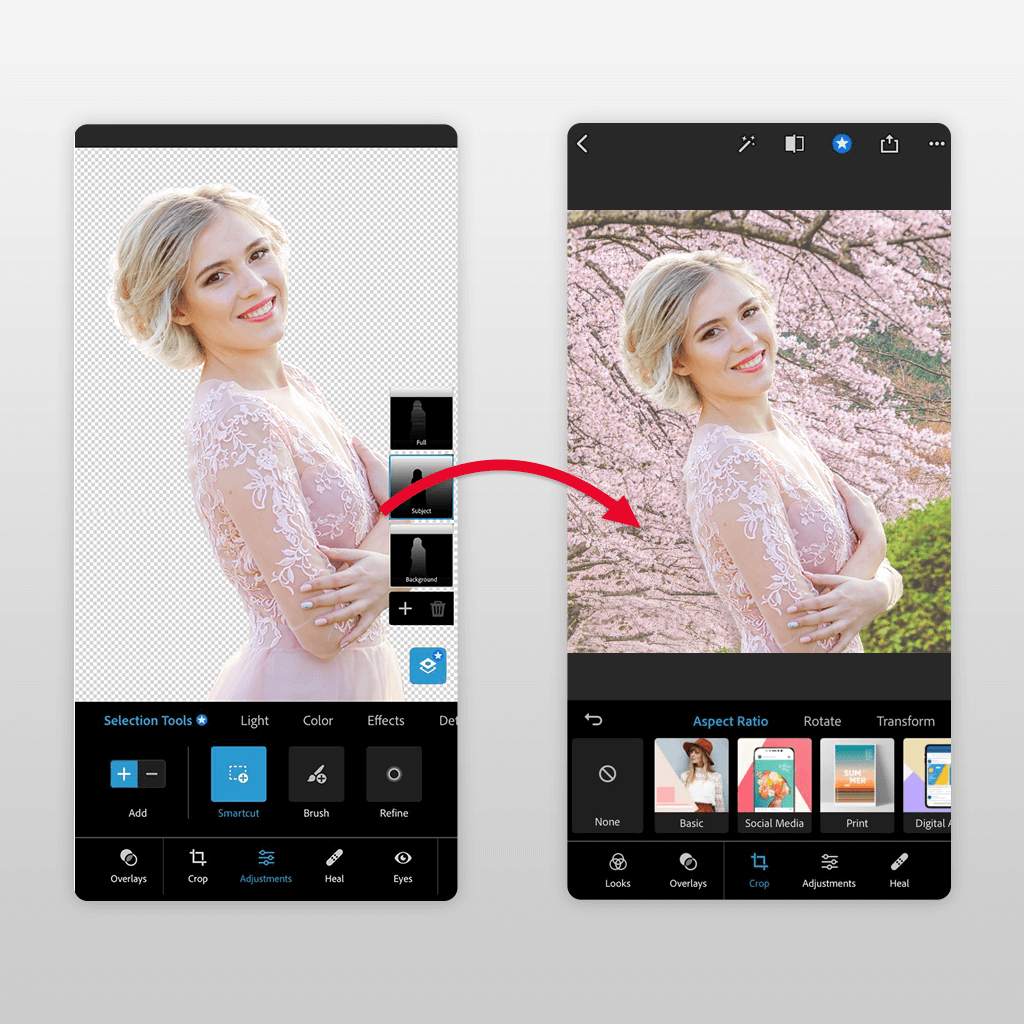
AI is making editing smarter and faster — think auto-masking and instant background removal.
Integration with Social Media
Apps are now directly connected to Instagram, TikTok, and other platforms, making sharing seamless.
Conclusion
Mobile editing isn’t just a backup plan anymore — it’s a full-fledged tool for photographers. With apps like Lightroom, Snapseed, and VSCO, you can create stunning photos directly from your pocket. Photography tip 82 proves that editing on mobile apps is no longer a compromise; it’s a powerful, practical, and creative option.
So, next time you snap a shot, don’t wait until you’re home. Try editing it on your phone and see how far your creativity can go.
FAQs
Q1: Which is the best free mobile editing app?
Snapseed is one of the best free options with pro-level tools.
Q2: Can I edit RAW photos on mobile apps?
Yes! Apps like Lightroom Mobile support RAW editing.
Q3: Are mobile edits good enough for professional work?
For many projects (especially social media), absolutely. For print, desktop might still be better.
Q4: Do mobile editing apps reduce image quality?
Not if you export correctly. Always choose high resolution.
Q5: What’s the fastest way to edit photos on mobile?
Use presets for quick edits, then tweak exposure and color to personalize.
✅ For more in-depth photography tips, tutorials, and guides, visit CameraTale.com – your go-to source for photography inspiration and learning.
👉 Discover smart, practical, and creative ways to improve your shots only at CameraTale.com.